Email categories
How new mail is filed into one category and flagged important, how to add your own categories, and how corrections teach the system through sender rules.
Every new email in a connected mailbox is filed into exactly one category and flagged important or not. The mailbox shows one tab for Important and one tab per category, so you can work your inbox by tabs. A category tab filters within All or Unread rather than replacing them: the tab in force shows its name and a cross, and picking it again lifts the filter. The importance flag is independent of the category: a mail can be a newsletter and still be important.
Default categories
Five categories ship with every workspace. They cannot be edited or deleted.
- Direct: mail written to you by a person.
- Transactional: receipts, invoices, order and account confirmations.
- Notifications: automated alerts from the tools and services you use.
- Newsletters: editorial mail you subscribed to.
- Marketing: promotions and offers.
A mail the system is not sure about stays uncategorized: below a confidence level, no category is written, though the important flag still is.
Custom categories
Add your own under Settings → Account for your mailboxes, or Settings → Workspace for the shared mailboxes. Each person can have up to 8 custom categories, and a workspace up to 8 for its shared mailboxes. A category has a name, an icon, a colour from the Standards palette (stone by default), and a description: the description is what the classifier reads to decide what belongs in it, so write it as a criterion ("invoices and payment reminders from suppliers").
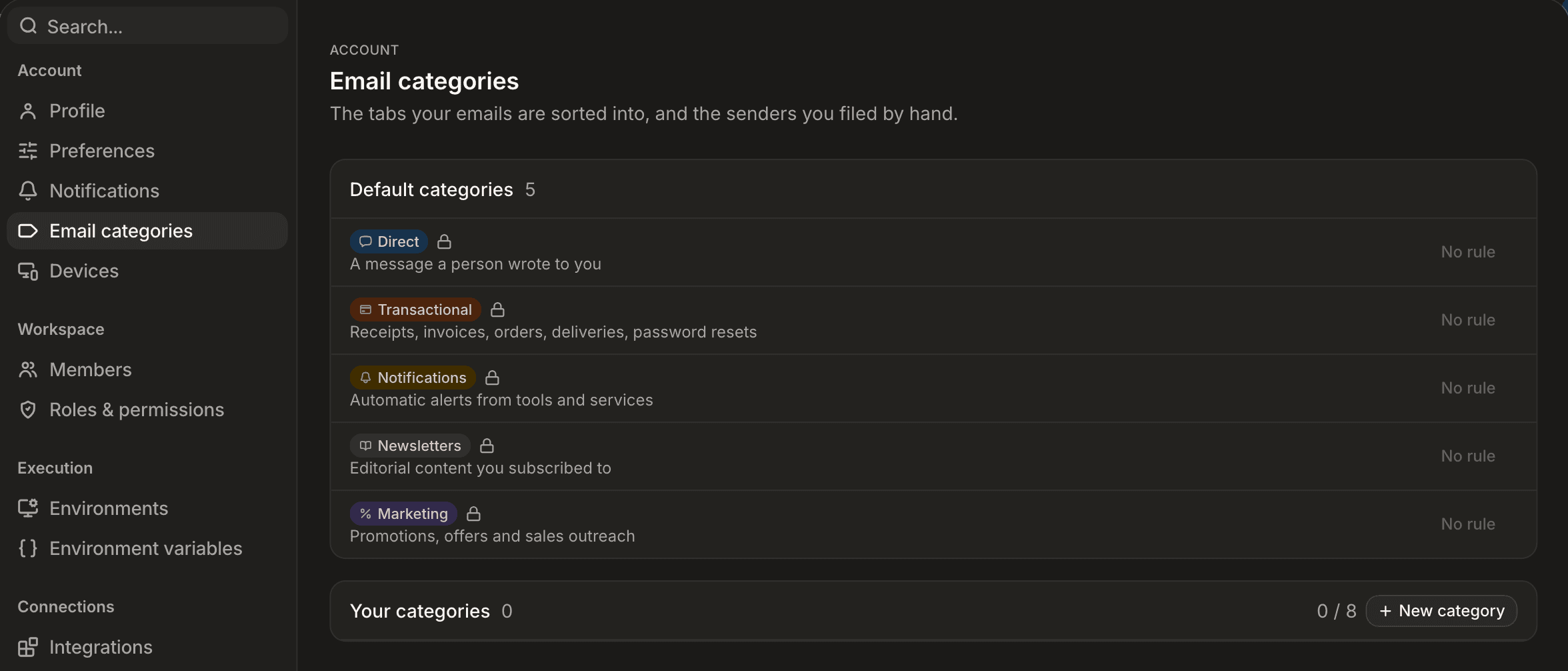
Renaming, recoloring or changing the icon applies at once. Editing the description applies to new mail only; mail already filed keeps its category. Deleting a category asks where to move its mail, by default to Uncategorized, and its sender rules follow the target or are deleted.
Correcting a category
Open the menu on a mail's category tag to choose another category, or to mark it important or not. A category correction also files the sender under a sender rule, so the next mail from them takes that category without the classifier choosing one; the classifier still decides whether it is important, from the sender and thread details without the body:
- the rule targets the sender's address by default;
- right after the correction you can widen it to the sender's whole domain, or from the rule's row in settings; a domain rule is never offered for public mail providers such as Gmail or Outlook;
- an address rule wins over a domain rule, which wins over the model;
- an importance correction never creates a rule.
Rules for your own mailboxes are yours to edit. Rules for a shared mailbox are edited by people who manage workspace settings; the person whose correction created the rule can always widen it or undo it. A private mailbox's rules are visible only to its owner.
Which mail is classified
Only mail picked up by live sync is classified. Mail that arrives through a backfill or a reconcile, sent copies, and mail already classified are never classified, and no history is classified retroactively.
The mailbox API accepts two filters: category (a category id) and important (true), alongside the other mailbox filters; both narrow the listing to mail whose verdict matches.
What is sent where
Each new inbound mail picked up by live sync is sent to the typesafe-ai/jev decision model through the Vercel AI Gateway. What is sent: the mail's body (up to about 93,000 characters, sampled beyond that), its subject, the sender and thread metadata (addresses, dates, counts and the verdicts of earlier mails in the thread), attachment names and types (never their content), and the titles of up to three linked records.
Separately, meaning-based search sends each mail's text, history included, to the workspace's embedding provider through the Vercel AI Gateway, to compute the vector stored in the database. A workspace holder who does not want this turns it off with ai.embeddings.emails: false; ai.embeddings: false turns off every embedding.
The classification call is metered in the AI usage journal and is not drawn from the AI wallet. There is no setting to turn it off: classification is part of how a connected mailbox works.
Live mail and the thread
New mail, read and unread, labels and categories, deletions at the provider and your own sends and drafts reach an open mailbox without a click: the list, the open thread, the reader pane, a record's Emails tab and the AI email window all update. A mailbox syncs from the provider every two minutes; where the hosting platform has switched on provider push, a change shows within seconds.
In a thread, each message looks like a row of the list: avatar, sender, a line of preview, an unread dot. Under the sender, "to me, Numa ▾" opens the full details: From, To, Cc, Date and Subject.
Searching mail
Search finds mail by its words and by its meaning.
- Words: subject, body, people and attachment names. Searching "invoice" finds a mail carrying
Invoice-2026-10.pdf. - Meaning: a query such as "the quote about the Lyon move" also surfaces mail that never uses those words. Both rankings are fused into one list.
- With attachment: the mailbox's filter menu keeps only threads that carry an attachment.
Meaning-based search relies on embeddings stored in the workspace's own database. Wherever an embedding model is configured it is on by default and embeds the whole history in the background after a mailbox connects. A search by meaning looks at the workspace's 20,000 most recent emails; older mail is still found by its words. See what is sent where. After an upgrade that changes the mail index, the index rebuilds itself once at start-up; search results come back as it fills.
Meetings
Calendar invitations and their video calls are covered on Meetings.
Next steps
Read about Meetings, how roles and permissions gate workspace settings, or how agents and routines can act on your mail.